

Import/export of bank transactions
Here you can set import and export methods from/to the general ledger journal:
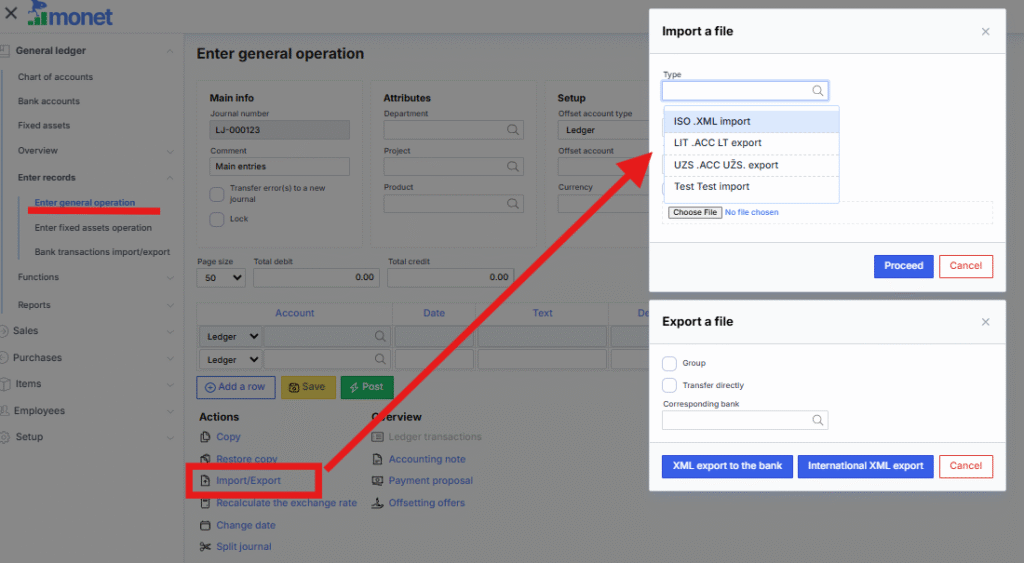
each method creates log entries based on the collected set of rules.
For example you have a file which must be imported into the ledger transactions:

As you can see in the example, the line entries are separated by a comma, so for Field separator enter ,
and fill in the method settings fields according to the sample file that you periodically load. Here is other example:
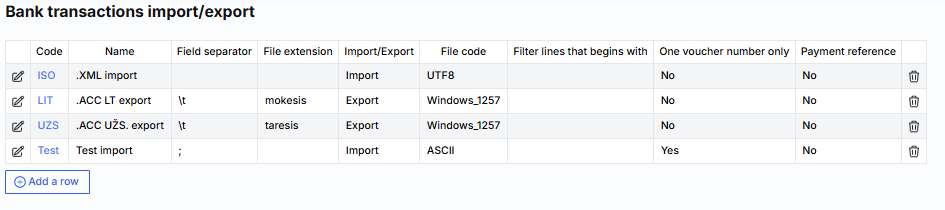
where:
Code – method identification number.
Name – method description.
Field separator – specifies how fields are separated. For example: \t means tab, can be semicolon (;), etc.
File extension – in the case of export, specifies what file extension should be created.
Import/export – specifies the direction.
File encoding – specifies the file encoding, e.g.: Windows_1257, UTF8.
Filter lines starting with – you can specify a filter according to which certain lines will not be imported.
One voucher number – in the case of import, specifies that a new voucher will be created for each journal line.
Payment reference – if checked, during import, it is checked whether such a line has already been imported according to the payment reference number.
Clicking on the name of the method/rule set in the Code column via the link will open the rule set that makes up the import method:
For example, when you open the POZ method, you see
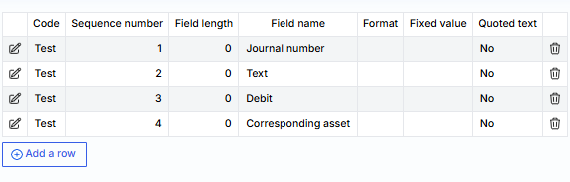
This lists the columns imported/exported from the file, their Monet field equivalents, etc. settings.
General rule provisions:
– all fields of the sample row must be described sequentially from the first, from 1 to the last,
– in the Field Name column , select the required fields, leave the omitted fields blank.
– when Debit Amount, Credit Amount, Amount are selected:
* blank Format corresponds to the amount in cents
* comma Format corresponds to the amount in the format 0.00
* period Format corresponds to the amount in the format 0.00
Below is a table for analyzing the Text column field, which is the settings for import training, i.e. rules for applying the appropriate account type to the transaction:
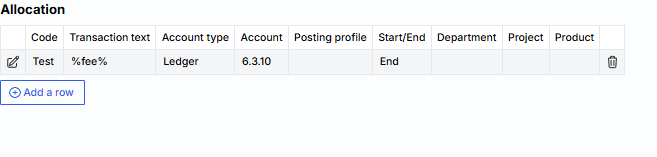
where:
Transaction text – specifies the part of the transaction text, where % means any text before or after the text.
Account type – you can specify which account type to select. You can choose Ledger, Customer, Supplier, Bank or Asset.
Account – the account of the selected type is specified.
Posting profile – if the account type is Customer or Supplier, the proposed ledger interface is specified.
Start/end – you can specify whether to apply the import rule at the beginning or at the end. Start here means before applying the MonetShark recognition algorithm itself. For example: if we specify that the transaction text rule %fee% would be applied at the beginning, then the import algorithm, upon seeing a text match, will not even try to search for the customer by payer code or company code, but will immediately apply this rule. If it were specified to apply at the end, then the algorithm would first try to find the customer by company code, etc. and only if it is not found would it apply the rule.
Attention: if not specified, it will be applied at the end.
Department, Project , Product – you can specify which attributes the rule would assign to the respective transaction.