

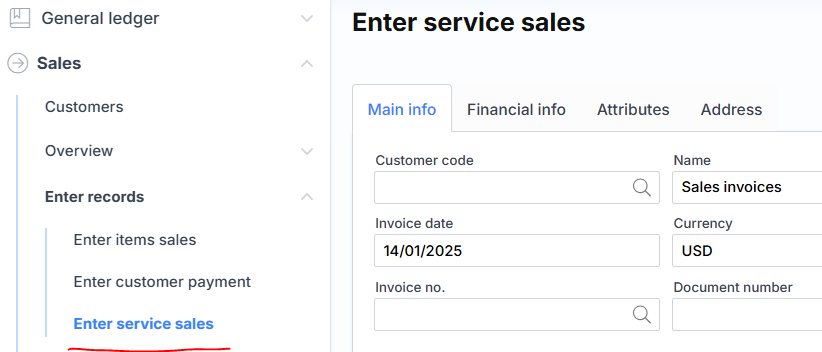
Enter service sales
This form is used when there is no need to use inventory (although inventory can also be service type). It is faster and easier to enter information here, but there is no certain functionality (for example, product price, discount % etc.). The income ledger account is indicated directly (not through the item settings).
The upper part of the service sales order fields consists of:
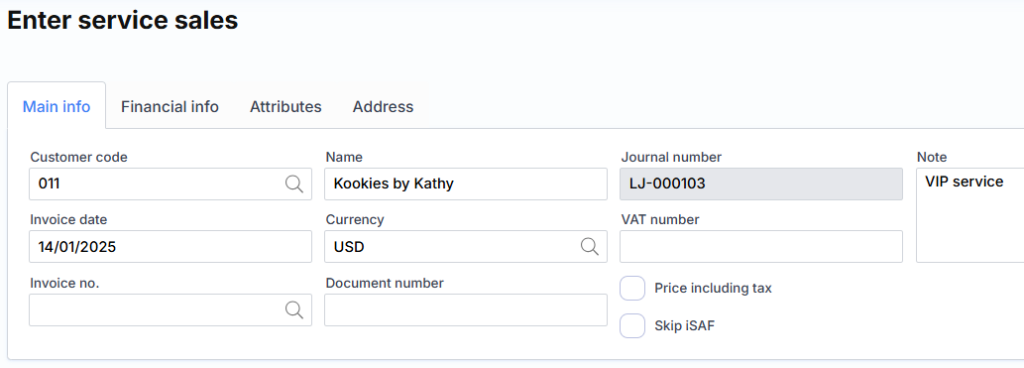
Basic information
Customer code – the optional code (ID) of the customer to whom the sale is to be made.
Invoice Date – indicates the financial date of the transaction. It will also become the invoice date.
Invoice no., if manual – enter the account number if you do not want the number to be generated and assigned by the system itself.
Name – the customer’s name is displayed.
Currency – the currency code of the transaction.
Prices with VAT – check the box if we want the entered amount to be interpreted with VAT included. In this case (by ticking the box), VAT will be calculated in reverse. For example: if the specified sales amount is 100eur and the Price with VAT check box is not marked, then applying a 21% rate, the total with VAT will be 121eur. If the Prices with VAT check box is marked, then with a 21% rate, the total with VAT will be 100eur, and the amount without VAT will be 82.65eur and the VAT fee will be 17.35eur.
Journal Number – system generated sales order number.
VAT payer code – the client’s VAT payer code is displayed. If the VAT payer’s code is not indicated on the customer’s card, and the user enters it in this form, it is automatically recorded on the customer’s card.
Do not include in iSAF – check the box if we do not want the registered account to be included in the iSAF register.
Note – A comment about the sale.
Financial information
DK interface – registration of the client’s share to the general ledger account.
Payment method – specifies the method by which the customer pays.
Terms of payment – specifies how payment by the due date is calculated.
Pay by – a manually specified pay by date.
VAT group – customer/supplier VAT code when creating order lines.
SF type – specifies the type that is transferred to the iSAF registry.
Symptoms
Department – a unit attribute is assigned to the customer unit.
Project – a project attribute is assigned to the client part.
Product – the product attribute assigned to the customer part.
If there is no corresponding attribute specified for the SF line, it is copied from here.
Address
Street – select or enter the delivery street.
City – Select or enter the delivery city.
Country – Select or enter the country of delivery.
Postcode – Select or enter the delivery postcode.
Service order lines consist of the following fields:

where:
Product description – the sales line is described, usually the description of the service is indicated. You can choose from the list of services , then the corresponding fields (description, correspondence, VAT, amount, attributes) from the service card will be filled.
Quantity – the specified quantity.
Amount – amount to be entered or calculated.
Correspondence – a DK account is indicated, usually it is an income account.
Product VAT group – the product VAT code is selected.
Icons:
 – the row is deleted.
 – the window for specifying line attributes is called.
The bottom part consists of the following buttons:
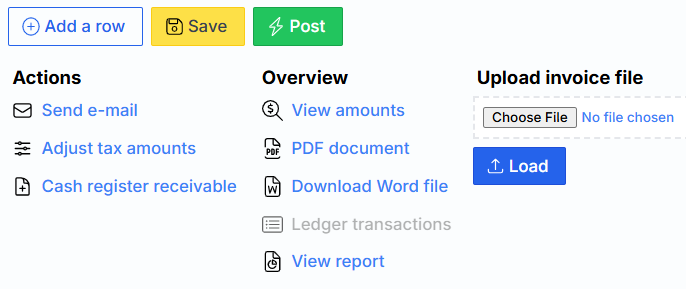
where the first three are typical:
Add line – adds a new order line.
Save – the order data is saved on the server.
Post – the order is registered financially (recorded in the general ledger and related modules) and an invoice (SF) is created.
Other buttons:
Send e-mail e-mail – a dialog box is called up, where the invoice can be sent to the customer by e-mail. by post
Adjust VAT amounts – it is possible to adjust the VAT amount calculated by the system.
Cash Receipt Order – creates a customer payment journal that records the receipt of money from the customer. The cash register is selected from the Main cash register field of the company setup form . View Totals – Shows the various totals for the entire order, such as: Total, VAT and Final Total. PDF document – SF is downloaded in pdf format. Create a Word file – downloaded in SF docx format. Ledger transactions – Ledger transactions related to this order generated after the registration exhibition. The link is not active until the order is registered.