
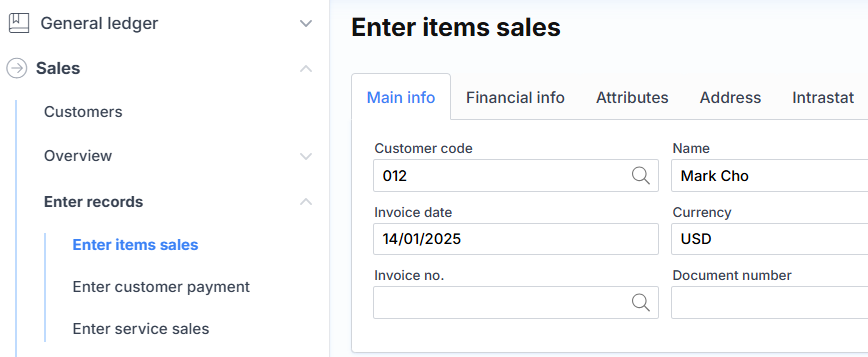
Enter items sales
The top part of the sales order fields consists of:
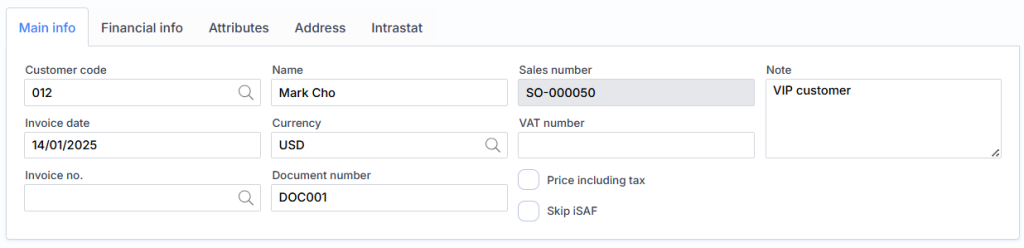
Main information
Customer code – the optional code (ID) of the customer to whom the sale is to be made.
Invoice date – indicates the financial date of the transaction. It will also become the invoice date.
Invoice no., if manual – enter the account number if you do not want the number to be generated and assigned by the system itself.
Name – the customer’s name is displayed.
Currency – the currency code of the transaction.
Prices including tax – check the box if we want the entered price and amounts to be interpreted with VAT included. In this case (by ticking the box), VAT will be calculated in reverse. For example: if the specified sales amount is 100eur and the Price with VAT check box is not marked, then applying a 21% rate, the total with VAT will be 121eur. If the Prices with VAT check box is marked, then with a 21% rate, the total with VAT will be 100eur, and the amount without VAT will be 82.65eur and the VAT fee will be 17.35eur.
Sales number – system generated sales order number.
VAT number – the client’s VAT payer code is displayed. If the VAT payer’s code is not indicated on the customer’s card, and the user enters it in this form, it is automatically recorded on the customer’s card.
Skip iSAF – check the box if we do not want the registered account to be included in the iSAF register.
Note – A comment about the sale.
Financial information
Payer – indicates the customer (may differ from the Customer short field ) for whom the account is registered financially. For example: delivered to one customer and paid by another.
DK interface – registration of the client’s share to the general ledger account.
Payment method – specifies the method by which the customer pays.
Terms of payment – specifies how payment by the due date is calculated.
Pay by – a manually specified pay by date.
VAT group – customer/supplier VAT code when creating order lines.
Order type – determines what kind of order it is. The following are available: Offer , Sales order , Refunded item . If you choose the first type, the product is not reserved. The second type is standard. And if we want to enter a product return, we choose the third one.
SF type – specifies the type that is transferred to the iSAF registry.
General discount – a discount code that can be applied to the entire order.
Total discount % – discount percentage for the entire order.
Warehouse – Suggested warehouse when creating order lines.
Product VAT group – the product VAT code is offered when creating order lines.
Update rows button – when clicked, the system will update the Warehouse , VAT group and Item VAT group specified above for all rows .
Attributes
Department – a unit attribute is assigned to the customer unit.
Project – a project attribute is assigned to the client part.
Product – the product attribute assigned to the customer part.
If there is no corresponding attribute specified for the SF line, it is copied from here.
Address
Street – select or enter the delivery street.
City – Select or enter the delivery city.
Country – Select or enter the country of delivery.
Postcode – Select or enter the delivery postcode.
Delivery terms – optional delivery terms. This field is relevant when creating Intrastat reports.
Contact ID – specifies the customer’s contact person.
Change Address button – allows you to select an alternative address for the customer. Alternative customer addresses can be indicated on the customer card.
Intrastat
Transaction code – optional Intrastat transaction code, for example: 21 – return of goods.
Transport – optional Intrastat transport code, eg: 3 – road transport.
Port – Optional Intrastat port code.
Statistical procedure – the Intrastat procedure is optional.
Attention : Before entering a sales line, a product card must be created.
Sales order lines consist of the following fields:

Item – optional product code that we want to sell.
Name – select or specify the name of the product.
Pcs. – the unit of measure of the sold product is selected, for example: kg.
Quantity – the quantity of the product is indicated.
Price – the price of the product is indicated.
Discount perc. – the discount percentage is indicated.
Amount – amount to be entered or calculated.
Return cost – the amount for which the product is returned to the warehouse. The field is displayed only if the Order type Returned item is selected .
Warehouse – choose the warehouse from which the item will be written off.
Serial number – enter or select a serial number.
Package – enter or select the number of the package (valid until date).
Attention : the fields Warehouse , Serial number and Package may not be visible. Display and operation depends on settings.
Product VAT group – the product VAT code is selected.
Attention : after entering the quantity and price, the amount is calculated automatically. You can also do the opposite, enter the quantity and amount, then the price is calculated. The price may not be calculated if you get an “ugly” number, for example: if you enter a quantity of 3 and an amount of 2, the price field will remain empty.
Icons:
 – line editing mode is invoked.
 – the row is deleted.
 – the window for specifying line attributes is called.
 – changes the order of arrangement of lines, which remains after printing the invoice.
 – a new order line is added.
Attention : if there are many lines, you can use the sorting option. For this you need to click on the name of the field, for example: Quantity . Only this sorting works in preview mode, it does not transfer to the invoice printout.
The bottom part consists of the following buttons: