

Item list
Products can be of the following types:
- services,
- material goods (items),
- products (BOMs).
The first can be divided into services we provide and services (costs) we buy.
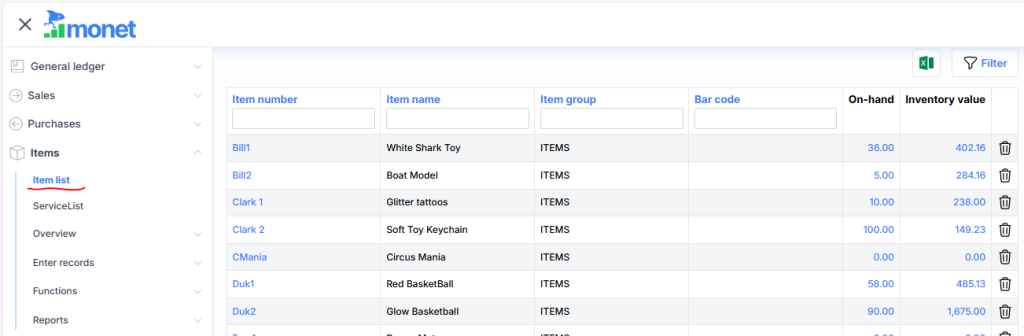
Clicking on the product code opens the product card. It consists of the following groups of fields.
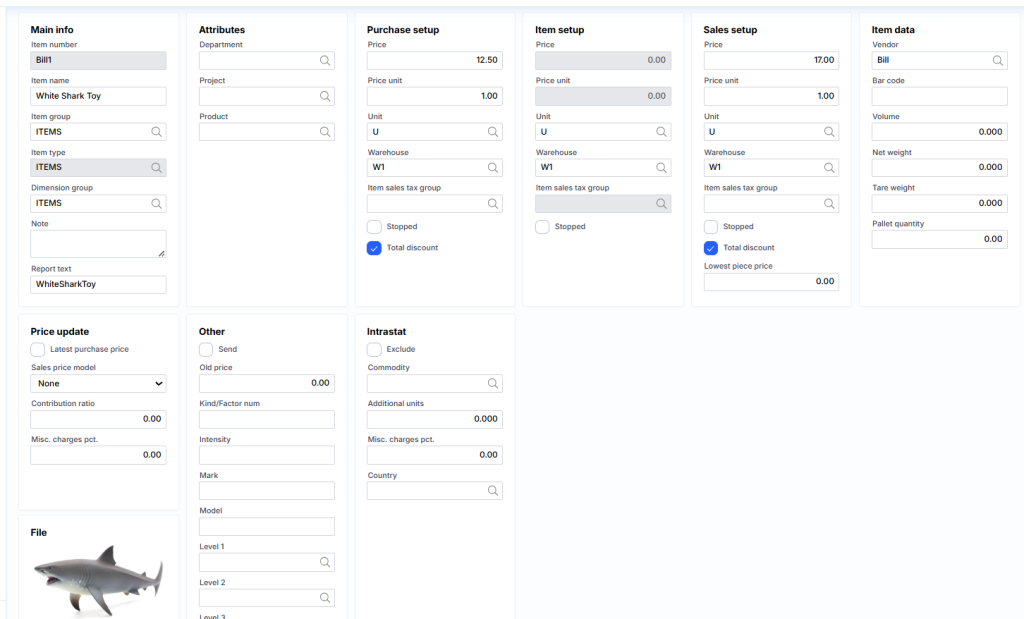
Main information
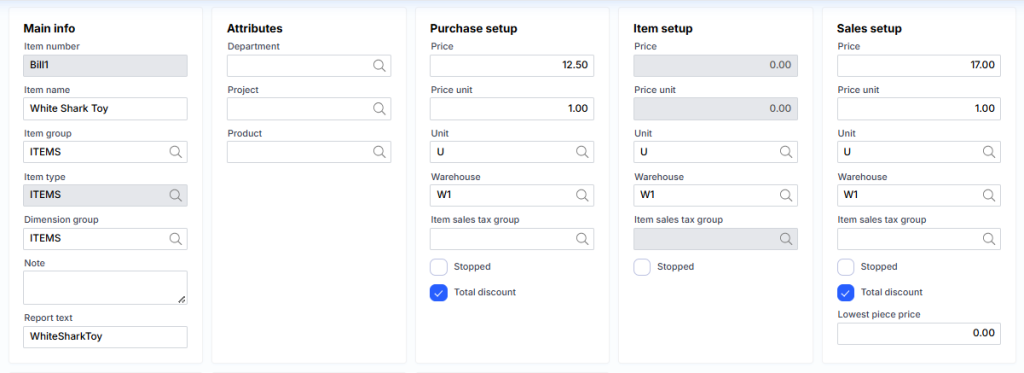
Item no. – the product code or ID that identifies the product is unique and cannot be changed once created.
Product name – text describing the product. This text is often displayed on forms next to the item number.
Product group – specifies how product operations will be registered in the DK. More information here .
Product type – this field indicates how it will be registered in DK. Are purchases accumulated or debited immediately? There can be three product types: Goods, Products and Services. The first two are used for normal goods, which are usually assigned to class 2, and the cost is written off to class 6 at the time of sale. The third type – Services – is used when buying at cost or selling without cost.
Dimension group – determines how and what product dimensions (warehouse, package (validity) and serial number) can be managed.
Note – large text used to describe a product, usually in an internal company environment.
Report Text – Product related text for use in various reports.
Attributes
Department – the unit attribute offered for the product transaction.
Project – the project attribute offered for the product transaction.
Product – the product attribute offered for the product transaction.
Purchase setup
Price – indicates the price offered by the system when entering a purchase order. It is convenient to use, controlling whether the supplier has raised prices.
Price unit – indicates how many units the price is for. For example: If not specified (0) or specified as 1, it means that the price is for one unit. For example, if 10 is specified and the Price field is 0.03, then the unit price will be 0.003. This field is useful when we want to enter a price with an accuracy greater than a cent.
Unit – the unit of purchase measure is indicated. For example: can be bought in kilograms and sold in grams.
Warehouse – the proposed warehouse is indicated in the purchase.
Item sales tax group – the proposed VAT product group is indicated in the purchase.
Stopped – when checked, entry of the purchase is blocked.
Total discount – indicates whether to apply general discount functionality to the product.
Items setup
Price – inactive.
Price unit – inactive.
Unit – the unit of accounting measure is indicated.
Warehouse – the proposed warehouse is indicated in the operations of the goods journal.
Item sales tax group is inactive.
Stopped – goods are blocked in transaction logs.
Sales setup
Price – indicates the basic price offered by the system when entering a sales order.
Price unit – indicates how many units the price is for. For example: If not specified (0) or specified as 1, it means that the price is for one unit. For example, if 10 is specified and the Price field is 0.03, then the unit price will be 0.003. This field is useful when we want to enter a price with an accuracy greater than a cent.
Unit – the unit of measure of sales is specified. For example: can be bought in kilograms and sold in grams.
Warehouse – indicates the proposed warehouse in the sale.
Item sales tax group – the proposed VAT product group is indicated in the sale.
Stopped – When checked, entry of sales is blocked.
General discount – indicates whether to apply general discount functionality to the product.
Lowest piece price – indicates the price below which the system will not allow registration of a sale. 0 means no minimum price applies.
Item data
Vendor – indicates the main supplier of the product.
Barcode – product barcode.
Volume – the volume of the product.
Net weight – the net weight of the product.
Tare weight – the weight of the product package.
Pallet quantity – the quantity of the product in the pallet is indicated.
GPAIS
Type – optional GPAIS type, which can be: commodity unit, transport, electronic equipment, battery, oil product, taxable product.
Classification – the GPAIS classification is indicated (optional).
Registration ID – the GPAIS registration is indicated, if it is different from the one indicated in the general company data.
Delivery started from – when delivery started.
Battery type – selectable battery type. The following meanings are possible: battery, accumulator .
Chemical composition – The chemical composition of GPAIS is selected.
Built-in – Marks whether it is built-in.
Household equipment – means household appliances.
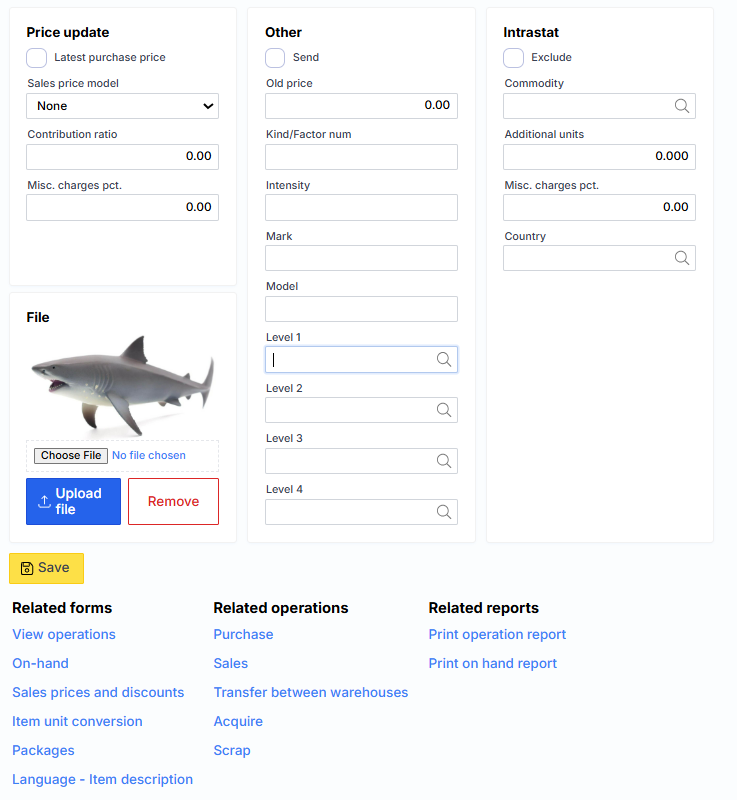
Price update
Last purchase price – if checked, the price of the purchase price on the product card is updated according to the price specified in the last purchase.
The selling price can be updated in two ways. This is set in the Sales field. price model . In the first method, according to the Contribution margin , the selling price will be equal to:
Selling price = purchase price * 100/ (100 – percent), where percent is the value from the field Contribution margin .
In the second way, according to Pap. off percent, the sale price will be equal to:
Sale price = purchase price + (purchase price * percent/100), where percent is the value from the field Pap. off percent.
Other
Send – check whether we want the product information to be sent to e-mail. shop.
Old price – indicates the old price. The field can be used in POS cash registers to display a discount or print product labels.
Kind/Factor num – the product serial number can be entered.
Intensity – indicates the strength of the product.
Mark – can be used to group products by car brands.
Model – can be used to group items by car model.
Levels allow you to have an item tree ( level 1 , level 2 , level 3 , level 4 )
Intrastat
Information related to the Intrastat report is indicated here.
Exclude – when checked, the goods will not be included in the Intrastat report.
Product – select the Intrastat customs code from the list, for example: 39171010.
Additional units – specify the conversion factor, for example: if the product is sold in units consisting of 7ml of liquid, and Intrastat requires the additional unit of measure to be LTR (litres), then in this the coefficient 0.007 should be entered in the field. After selling/buying 1000 units of goods, 7 LTR will be transferred to the Intrastat register.
Pap. off percentage – indicates an additional percentage of costs.
Country – the country of origin of the goods.
File
It is also possible to attach any type of file (eg image) to a specific item. Image size cannot be larger than 29 KB.
The bottom part consists of the following buttons:
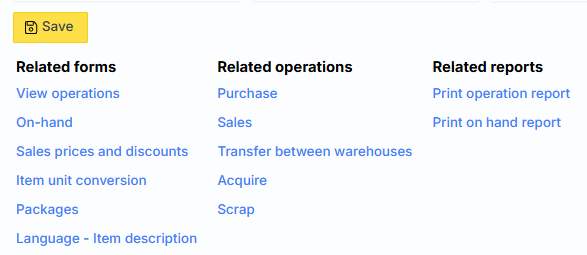
Where:
View operations – Displays transactions for that item.
On-hand – displays the balance of that item by warehouse.
Sales prices and discounts – a form opens where you can enter product prices and discounts based on customers, their groups, quantity sold or expiration date.
Item Unit Conversion – Enters the conversion from one unit of measure to another for this product. For example: from kilograms to grams or from rolls to meters.
Packaging – the GPAIS packaging of the product is entered.
Language – Item description – the description of the product in other languages is indicated.
Purchase – a window is opened where you can create a purchase after entering several parameters.
Sales - a window is opened where you can create a sale after entering several parameters.
Transfer between warehouses – a window is opened where, after entering several parameters, you can create a transfer from one warehouse (and/or package, serial number) to another.
Acquire – a window is called up where you can create a receipt of the product after entering several parameters.
Scrap – a window is called where you can create a product write-off after entering several parameters.
Print operation report – creates a product transaction report.
Print on-hand report – forms a report of product balances.