

Posted transaction editing
Registered transactions with certain restrictions (time period not closed, currency impact not evaluated, etc.) can be adjusted. The following types of corrective actions are available:
- Duplication
- Rubbing
- Change of registration date
- Adjustment of operation characteristics [link].
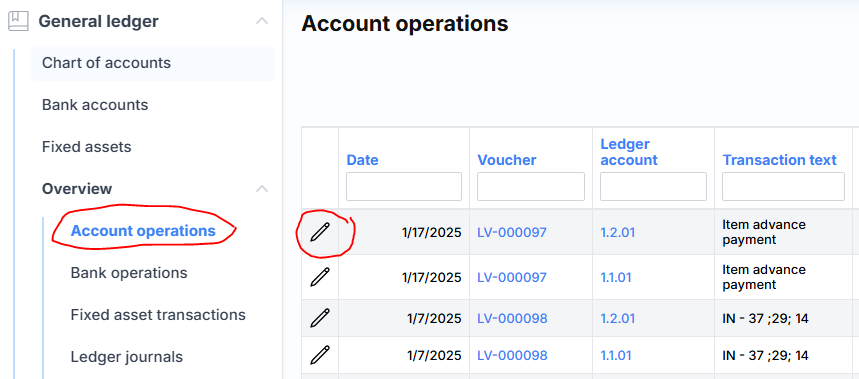
Adjustment actions are available from the ledger transaction or item transaction list by clicking the adjustment icon:
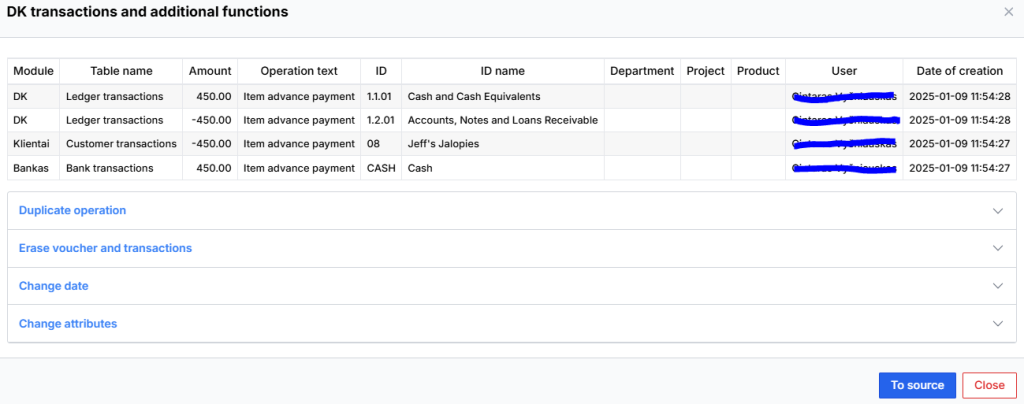
The following window opens, where you can see transactions in different modules, as well as which user registered the transaction on which day and time:
Duplication
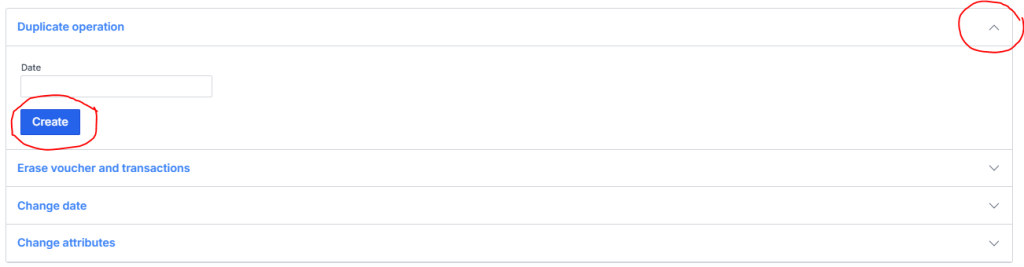
Duplication or copying is the simplest of these operations. If the operation is entered through the log and the log itself is not deleted, then the system can make a copy according to the specified date:
Erase
Erasing is the most complex adjustment operation. In erasure, there is a possible choice with the help of the check mark Cancel settlement :
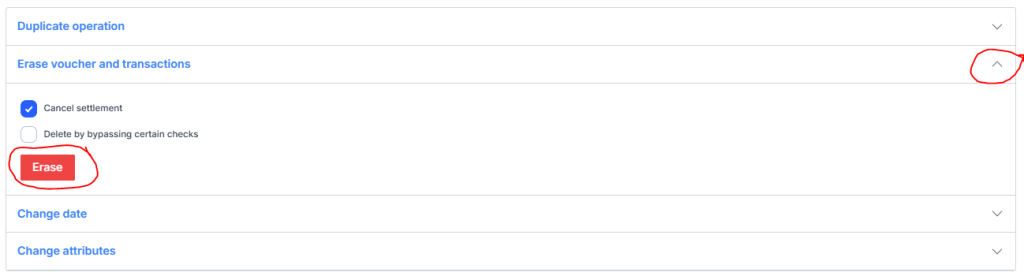
It is useful when trying to delete an already closed supplier or customer transaction. When checked, the system will attempt to uncover related transactions before deletion. In addition to unmasking, certain checks are performed before deletion begins:
- whether the period is not suspended or closed,
- whether or not the transaction is covered if the Undo cover check box is not checked ,
- is the impact of exchange rate changes not calculated,
- whether the bank transaction is reconciled [link],
- whether the cost price of the goods has been assessed,
- is not VAT closed.
Aspects of erasure
Deleting certain transactions has its own peculiarities. If the receipt to be deleted is a calculation of the cost of goods, the system will initially cancel the calculation and only then delete it. If the receipt to be deleted is a VAT closing receipt, the system will cancel the VAT closing itself. And as already mentioned, if the operation was covered and the Undo cover check box was checked , the system will perform the uncovering.
An example of erasure
Let’s say we see that a transaction has been registered with the wrong amount. To change the amount of such a purchase or sale invoice, follow these steps:
- Make a copy of an existing transaction,
- delete the bad
- Register the copy you made.
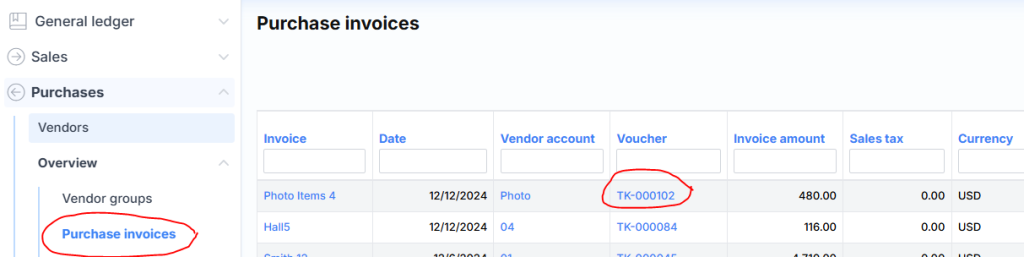
An example of a purchase invoice is provided as an illustration. The purchase invoice is found, in this case “123456” and the receipt is pressed (marked in red):
A financial transaction window opens, the address of which we copy and open in a new browser window. This way we have two identical pages.
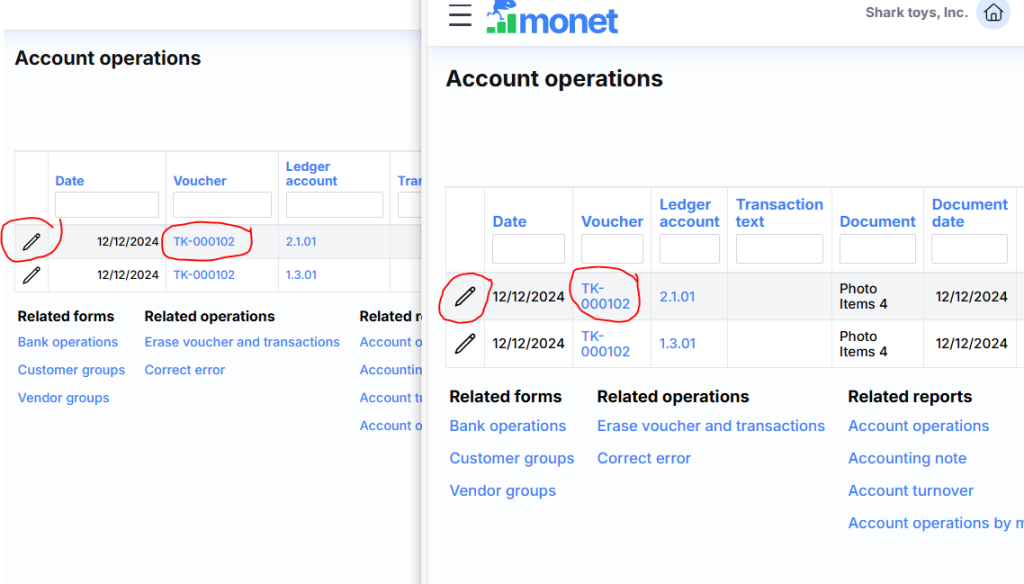
In both, we press any of the marked editing buttons. This window opens:
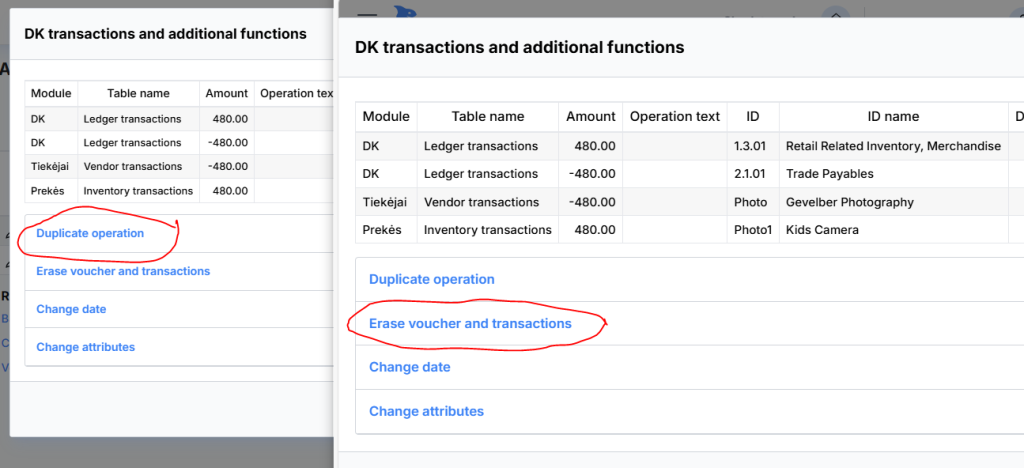
In one we select “Duplicate transaction” and “Create”, in another browser window we select “Delete all receipt and related transactions” and “Delete”. A message appears that the operation has been deleted. Then we return to the page where the copy was made. We adjust it (amount, supplier, payment method, etc.) and register it by specifying the date and the invoice number. In our case, we adjusted the transaction text, amount and date. We open purchase accounts:
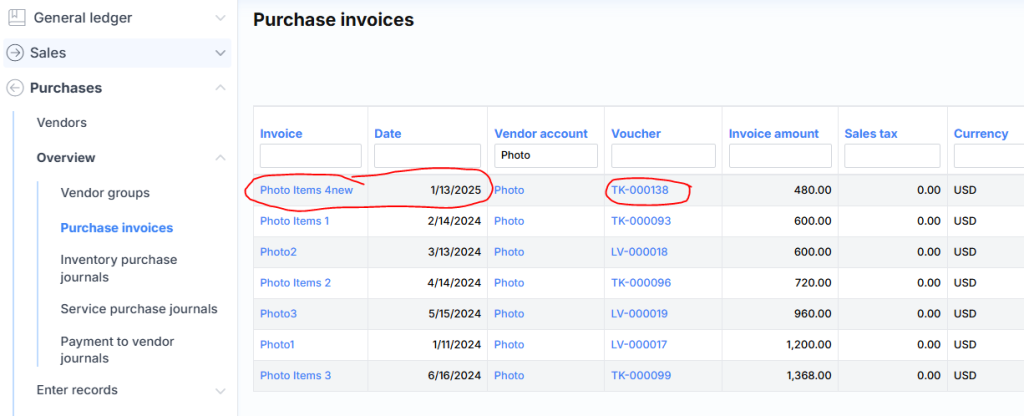
Here we check if everything is done well (ie the old invoice is deleted and the new one is registered). The same is done with sales invoices.
Change of registration date
In order to change the financial (registration) date of the operation, you need to indicate the date you want to change to:

Before the change, similar checks are performed as during the delete operation.
Adjustment of operation features
Adjusting the attributes is quite simple:
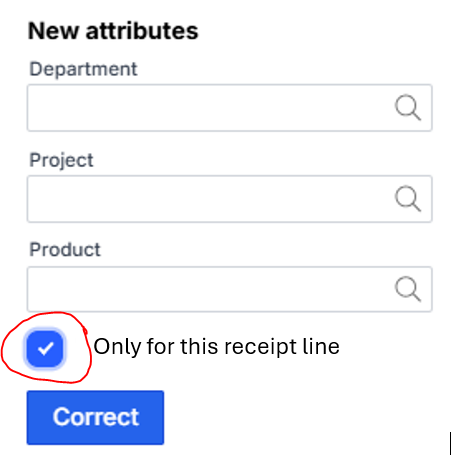
Before changing, it is checked whether there is no transaction in a closed or suspended period. Also, does such a (modifiable) attribute exist. Additionally, it is checked whether the new attribute is allowed according to the DK account settings.
Check box Only for this receipt line changes the attribute only in the DK transaction from which the edit icon is clicked. For example:
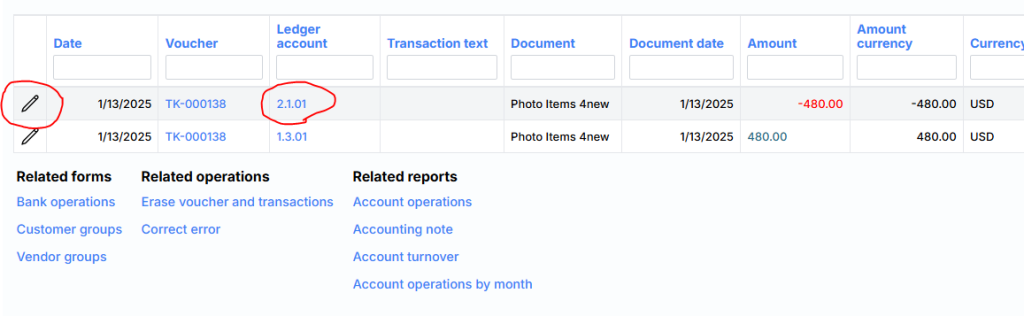
By clicking on the pen icon circled in red and checking the above-mentioned check box, the attributes will be changed only in the line where the GL account is 2.1.01 (and the attributes {FA, Collection, KOMAND}).