

Bank transactions import/export
The bank transaction journal is adapted for more convenient import of bank transactions, although the import itself can also be entered through the general journal.
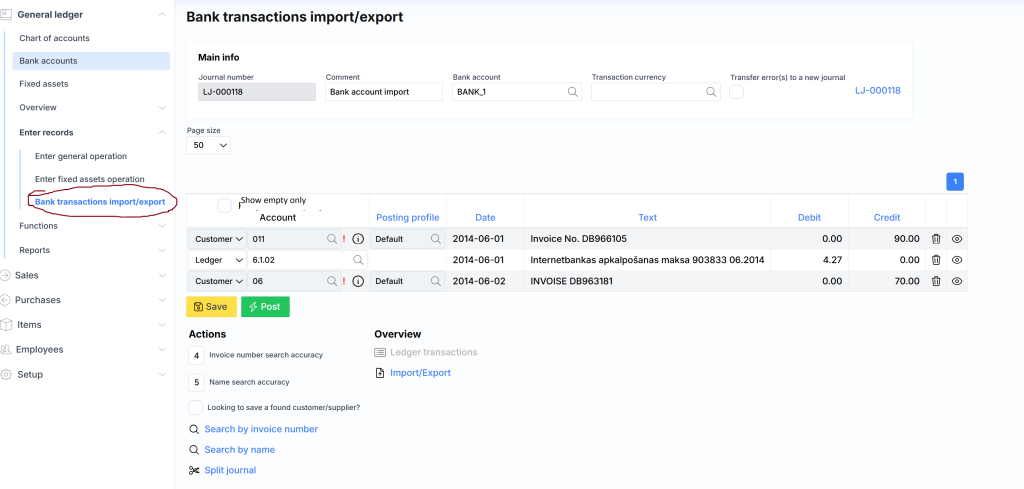
The upper part of the form consists of the following fields:

where:
Journal number – unique log number assigned by the system.
Comment – description or note of the log.
Bank account – the code of the bank account whose data we want to import.
Attention : Only the data of the same bank account can be imported into the journal.
Transaction currency – currency code of the statement.
Attention : Only one type of currency transactions can be imported into the journal.
Move rows with errors to new log – If checked, logging will log good rows and move rows with errors to a new log.
Page size – specifies how many lines to display on one page. Useful when working with large amounts of data.
The lines part of the journal consists of the following fields:
Show empty only – the filter is activated and displays only those lines for which no customer/supplier or ledger is specified, i.e. the Account field is empty.
Account – the account type is optional, and it is available in five types:
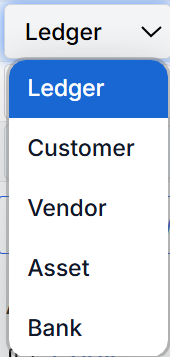
of which Customer (receipts), Vendor (expenses) or Ledger (commissions) are most often used.
Account – registration of the customer or supplier part to the general ledger account.
Date – indicates the financial date of the transaction.
Text – transaction text from the bank statement.
Debit – debit amount.
Credit – credit amount.
Icons: – line deletion;
 – assignment of attributes (department, project or product) to a row.
At the bottom are the following buttons:
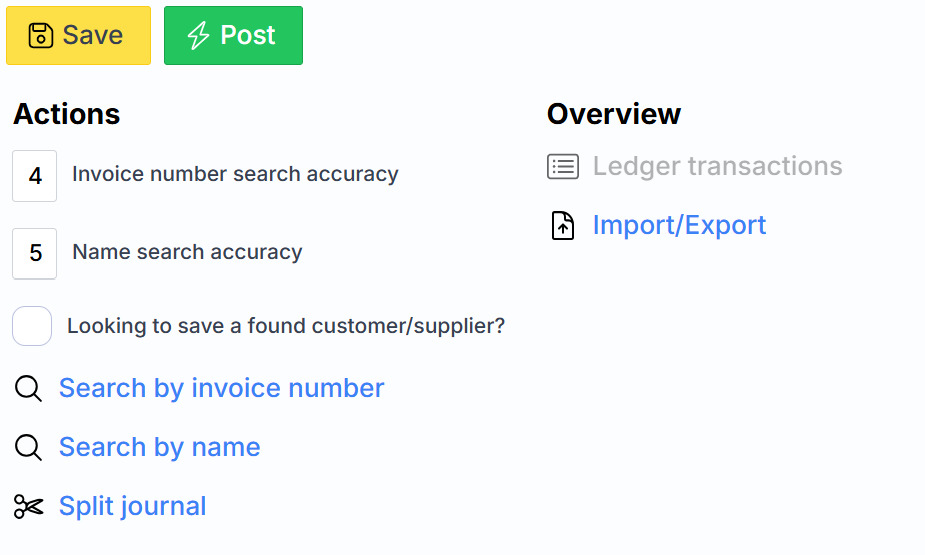
Where the first two are typical:
Save – Saves the log data to the server.
Register – the journal is registered financially (recorded in the general ledger and related modules).
Checkmarks:
Invoice number search accuracy – specify the minimum number of digits to use when searching (by clicking Search by invoice number ) of the customer/supplier based on the SF number of the transaction.
Name search accuracy – specifies the minimum number of characters to use when searching (by clicking Search by name ) by customer/supplier name.
Looking to save a found customer/supplier? – after checking the box and performing a search by SF number or name, the first found supplier/customer code will be entered in the Account field if this field is empty.
These are linked buttons:
Search by SF number – supplier/customer is searched by invoice number. For example: the description of the operation contains the following text “A1233-0001234bbb”, and the search accuracy of the SF number is specified as 5, it is possible to search by two numbers 1233 and 0001234, but it will search by the number 0001234, because it is longer than 5 (it will not search by the number 1233, because too short, ie length < 5).
Search by name – breaks the transaction text by spaces into words and searches among the customer/supplier names for those words whose length is greater than specified in the Name search accuracy field .
Attention : if the system finds more than one match, a red exclamation mark is displayed next to the Account field, and a message is displayed when hovering over it. For example:
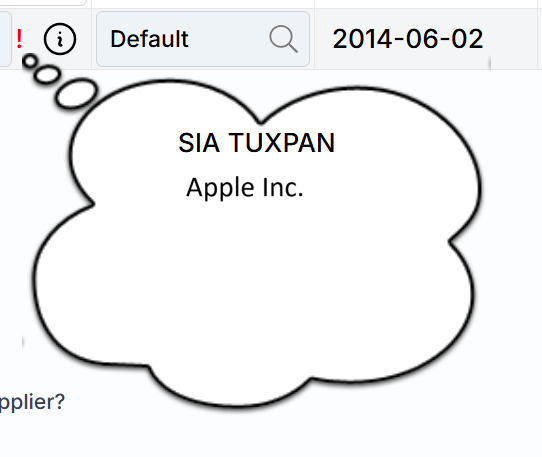
Here it shows that two supplier matches have been found.
Ledger transactions – G/L transactions related to this journal generated after posting exhibition. The link is inactive until the journal is registered.
Import/Export – brings up the import dialog.
Useful tips:
- If, after import, the system suspects that the operation has already been imported, the background of the line is colored pink:

- After import, if the customer/supplier code is not informative, you can check the name by clicking on the information icon:

- If we import the extract manually, the system saves the file itself. It can be opened and checked later:
