
Financial statements
Monet offers the following financial statements for each company you create:
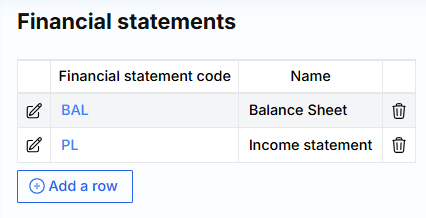
To create a relevant report for yourself, go to Settings->General Ledger->Financial Reports
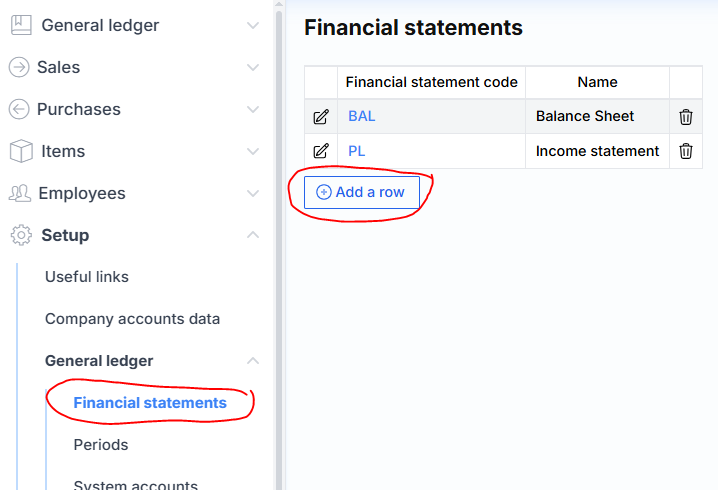
When creating a new one, press “Add row”. We enter the code of the report, its name and press “Save”.
After saving the report, we can see it in the general list. Then we click on its code.
A window for creating report lines opens, for example:
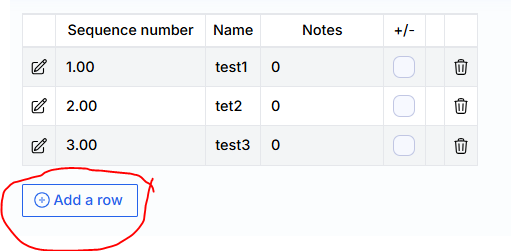
Rows are added by clicking “Add row”. The row number defines the sort order of the report rows. In the Name field, enter the name of the data displayed in the row. If it is necessary for the data in the report to be of the opposite sign (the number in the credit is displayed with a minus by default), then we put a check mark in the box next to the +/- sign. We press “save”.
GL accounts displayed in the line are summarized by clicking the edit icon. In edit mode we see the sum sign. By clicking on it, we will be able to specify the necessary accounts.
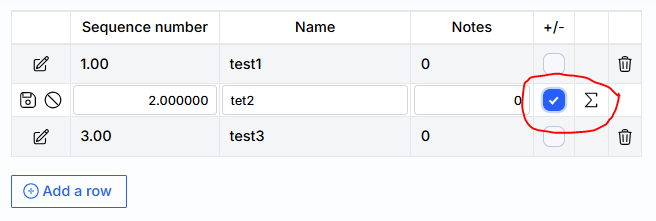
We select aggregated accounts. We press “save”. You can even add multiple account ranges if needed. For this, we press “Add row” and add another sample. We save. When everything is filled in, we just press “Close”.
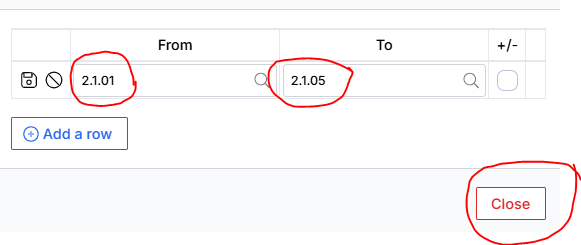
When the window for reconciliation of accounts closes, click “save”. This is how we summarize all the lines of the report.
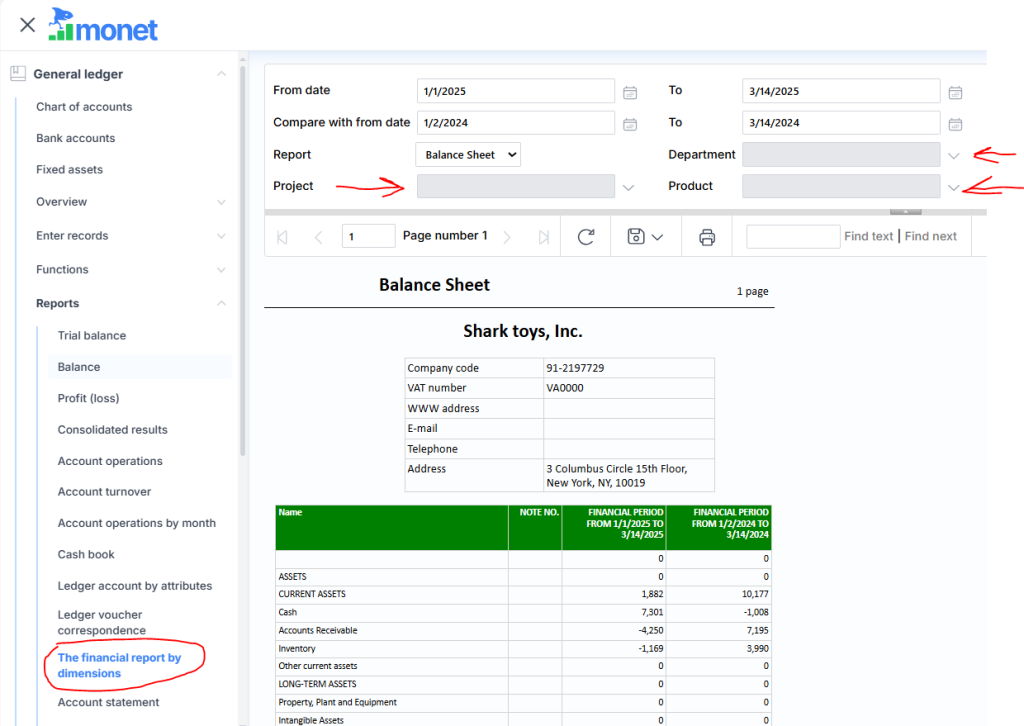
We will see the report in General Ledger->Reports->The financial report by dimensions selecting from the list of available reports.