
Filtering
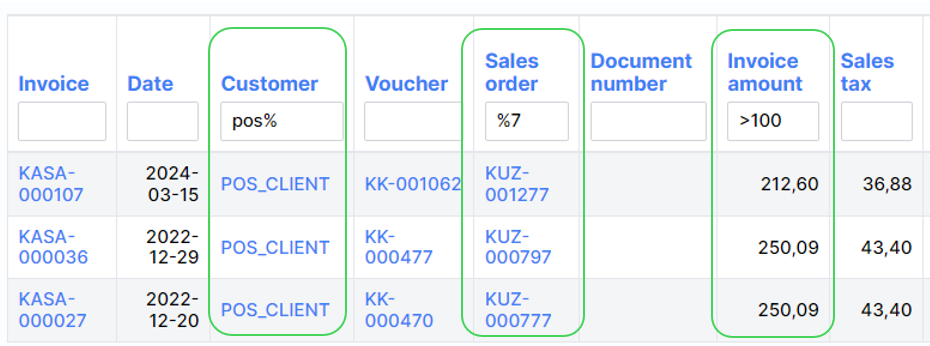
Large list-type forms have the ability to search for records. For this, the space in the upper part under the column names is used:
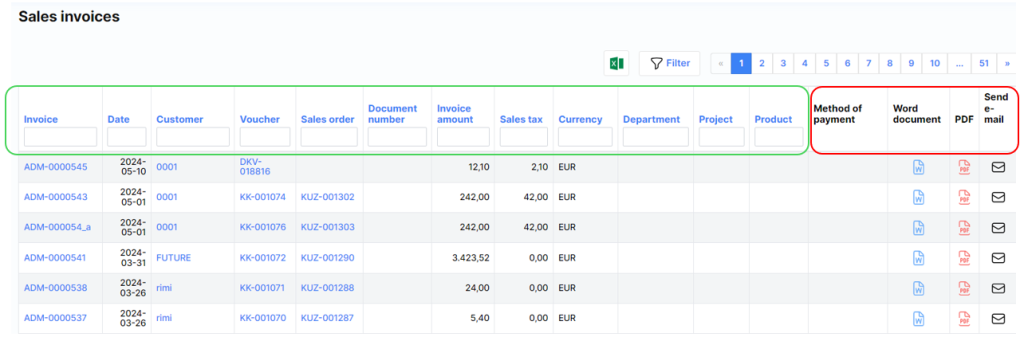
Gray and inactive areas represent columns that cannot be filtered.
Filtered data can be of the following types: text, number, date or a combination thereof.
Text filtering
When searching for text, a part of the search phrase is usually known. Let’s say we are looking for a transaction whose text contains a tax or taxes. Then it would be most convenient to enter the following search text by adding the % symbol at the end and press the filter button or the column name “Customer”:
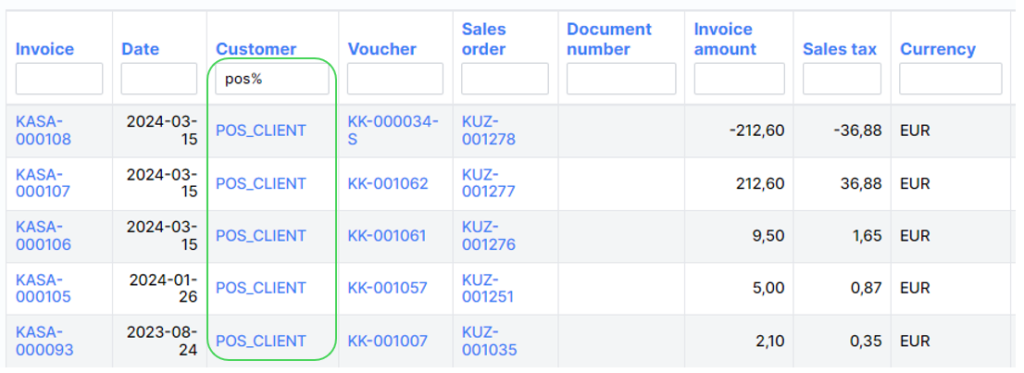
The % symbol means that the system will search for any entry whose text begins with the letters pos, such as position, positions, post etc.
If you want to search for text that does not necessarily start with the letters ants, then you should add % signs on both sides:
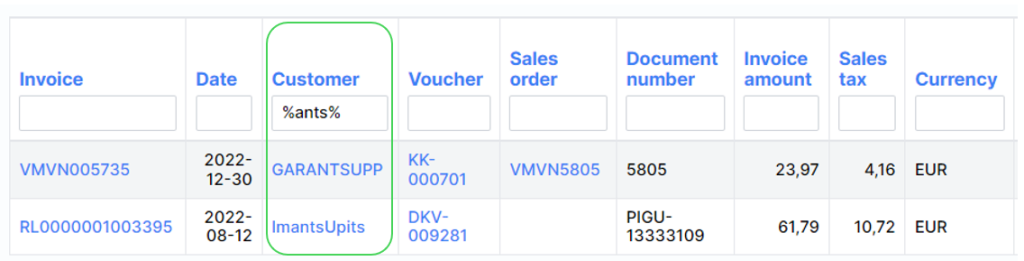
Then it will look not only for things like ants, antshrike, but also plants etc.
Number search
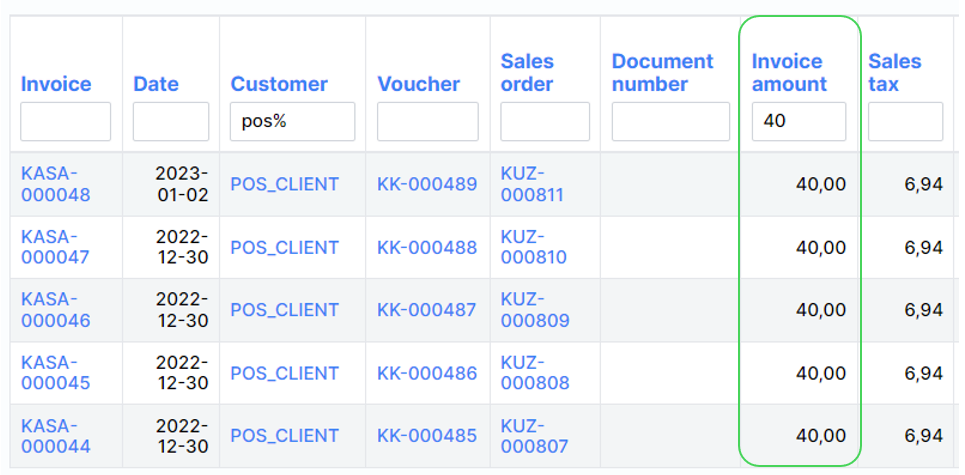
Searching for records by numbers usually results in a specific number, e.g. 40:
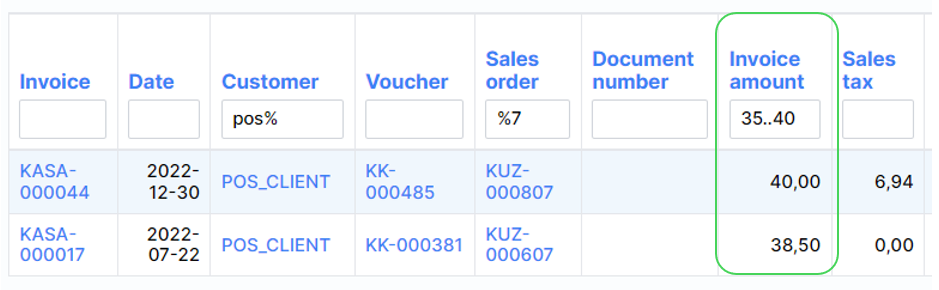
For a rounded interval, use a colon, e.g. between 35 and 40:
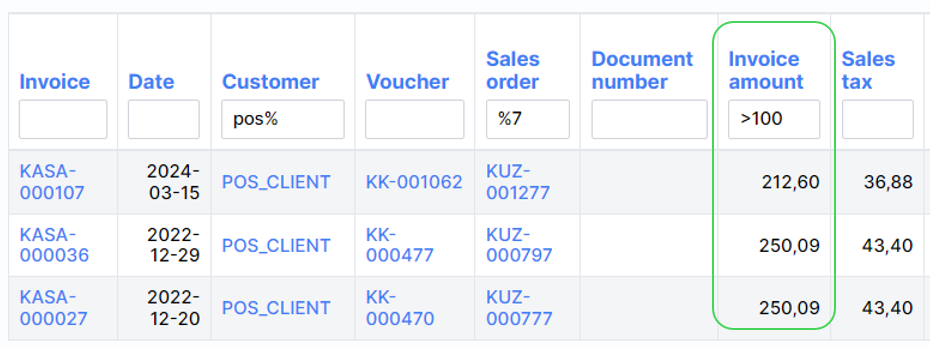
Or an unlimited interval, e.g. more than 100:
Search by date
Searching by date is similar to searching by number. Some examples:
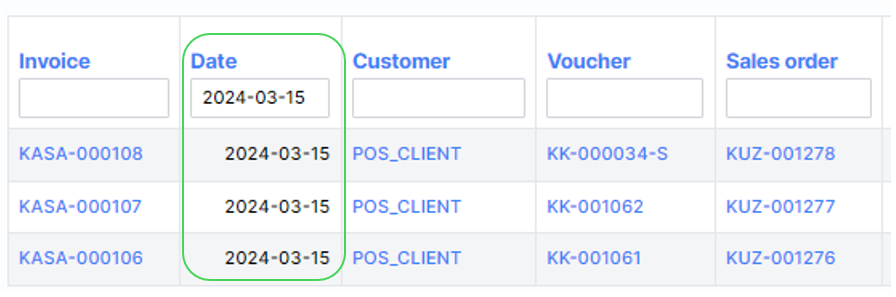
Specific date:
Later than:
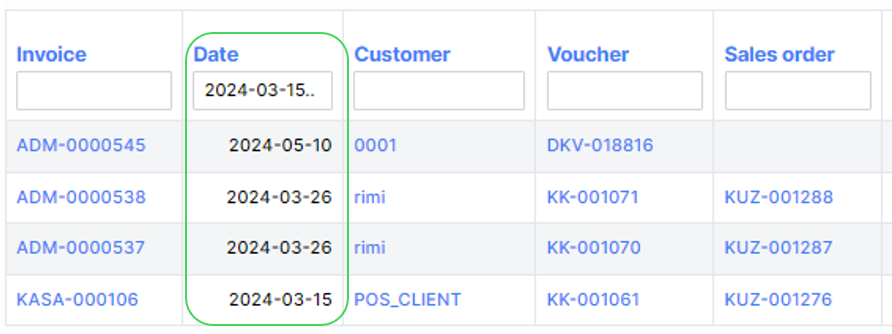
In the interval (entering 2024-03-15..2024-03-30):
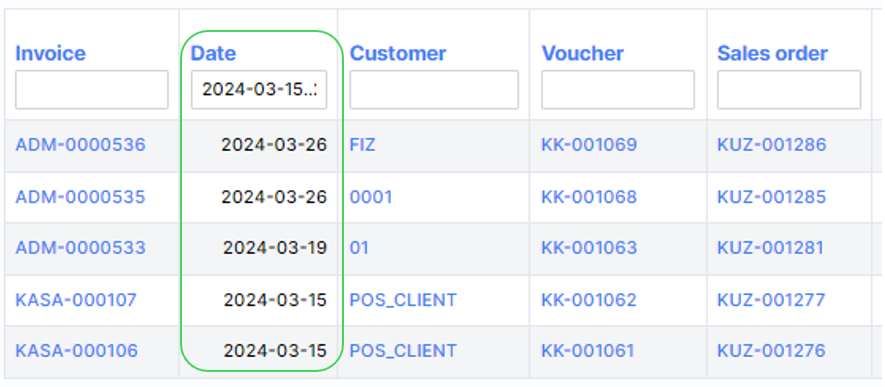
Combined search
Combined search is a search based on several columns. In this case, the “condition and” applies. For example, we want to find a transaction with POS orders with end 7 and amount greater than 100: