

GoCardLess connection
It is imperative to specify the “Bank” of the bank account, as the bank’s unique code will be taken from it.
In the bank account tab, click “Grant the right to access automatically” and in the window that opens, click the first button “Connect to bank” and continue to perform the steps specified by your bank until you return to Monetshark.

When the integration is completed correctly, 3 entries appear on the bank card:
Integration code, Mac key and Mac ID. In the “Mac key” field you will see the authorization date, it is valid for 3 months.
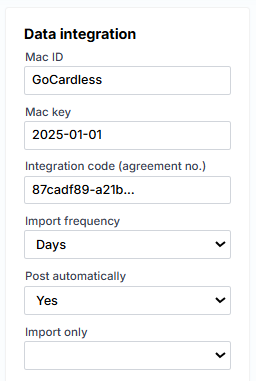
We recommend setting the import frequency to “Daily”.
Import journals will appear next to general journals.
Additional banks for GoCardless integration
If you need a bank integration that is not available by default, you can first check whether GoCardless supports that integration:
GoCardless Bank Account Data Coverage Overview – Google Sheets
If it’s in the list – you can add the needed bank group in Setup > General ledger > Bank transactions import/export page – bottom table with “Bank groups”, “Description” and “Routing number”. Routing number is “Institution_id” from the GoCardless doc. e.g.

